Getting Started with SchoolQualityReview.ai: A Step-by-Step Guide
A complete walkthrough of the SchoolQualityReview.ai platform — from creating your school to generating your first performance report.
Adam Aberman
CEO & Founder
SchoolQualityReview.ai helps schools understand their performance through AI-powered quality reviews. Upload your existing school documents, and the platform analyzes them against 85 quality indicators across academic, organizational, and financial standards — then generates a comprehensive performance report.
Here's a complete walkthrough of the platform, from creating your school to generating your first report.
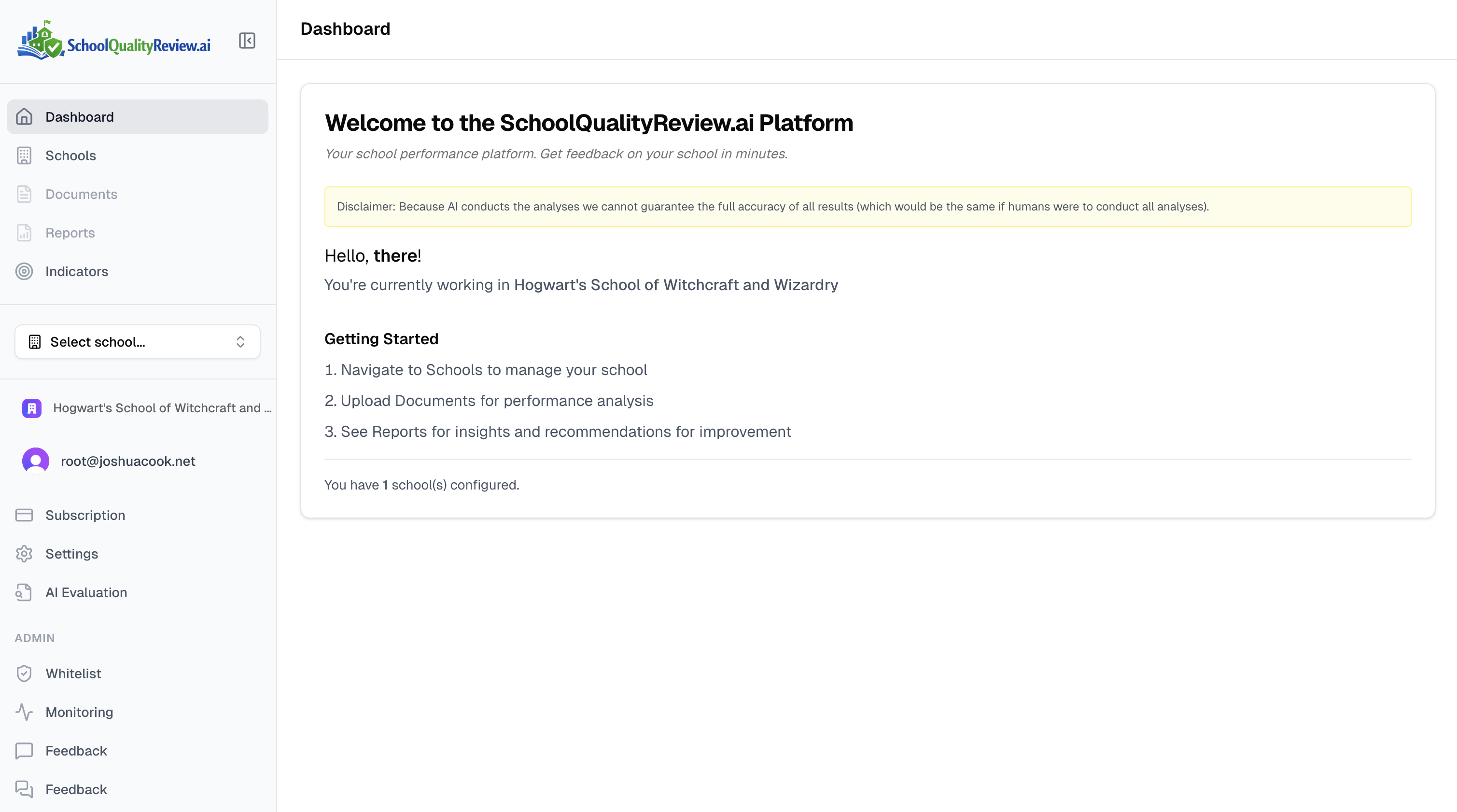
1. Your Dashboard
After signing in, you'll land on the dashboard — your home base showing your schools, quick-start steps, and account information.
2. Create Your School
Click Add School from the Schools page to set up your school profile.
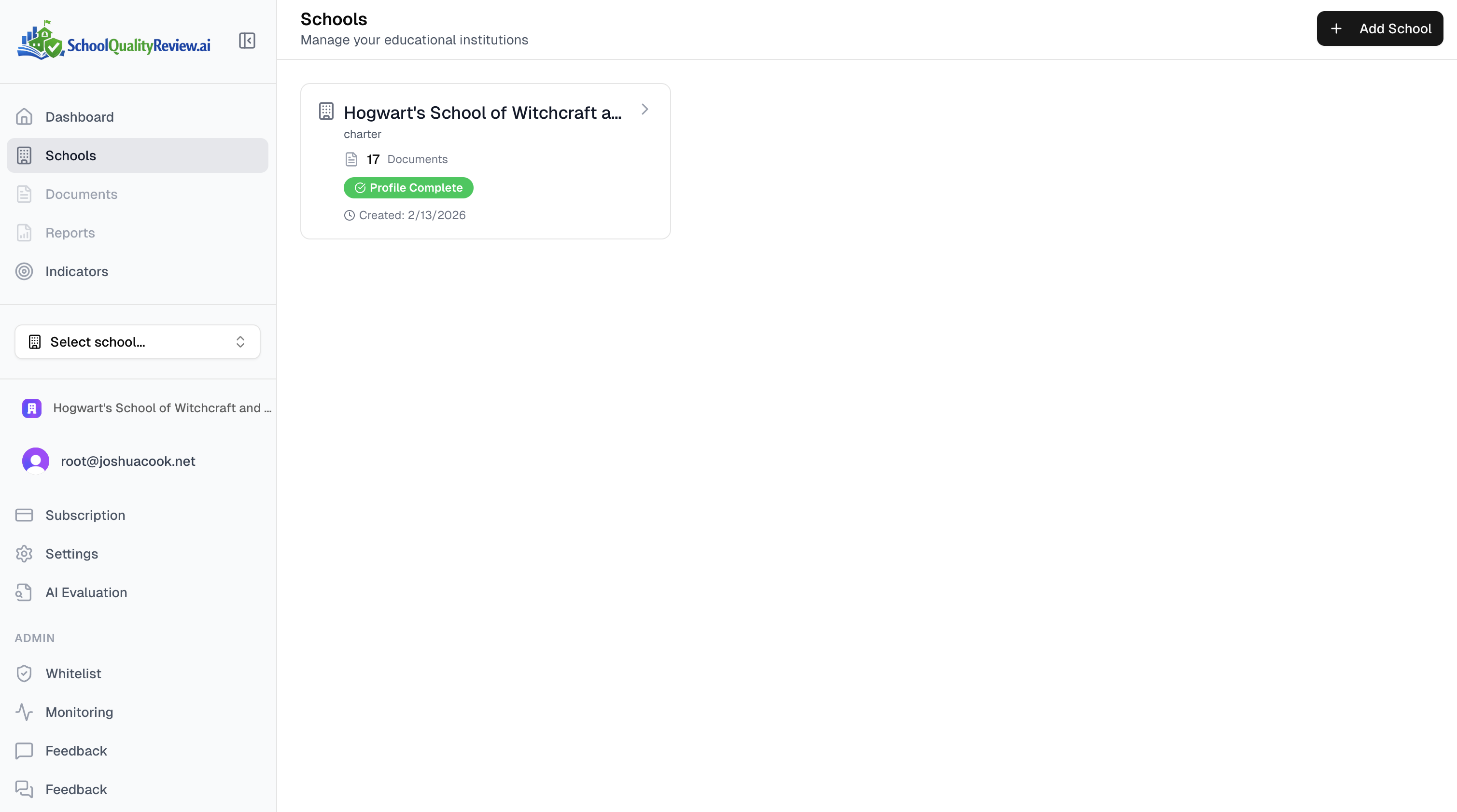
Fill in the basics: school name, contact email, school type, grade levels, location, years in operation, and enrollment range. The platform supports grade ranges like K-5, 6-8, 9-12, and TK-12.
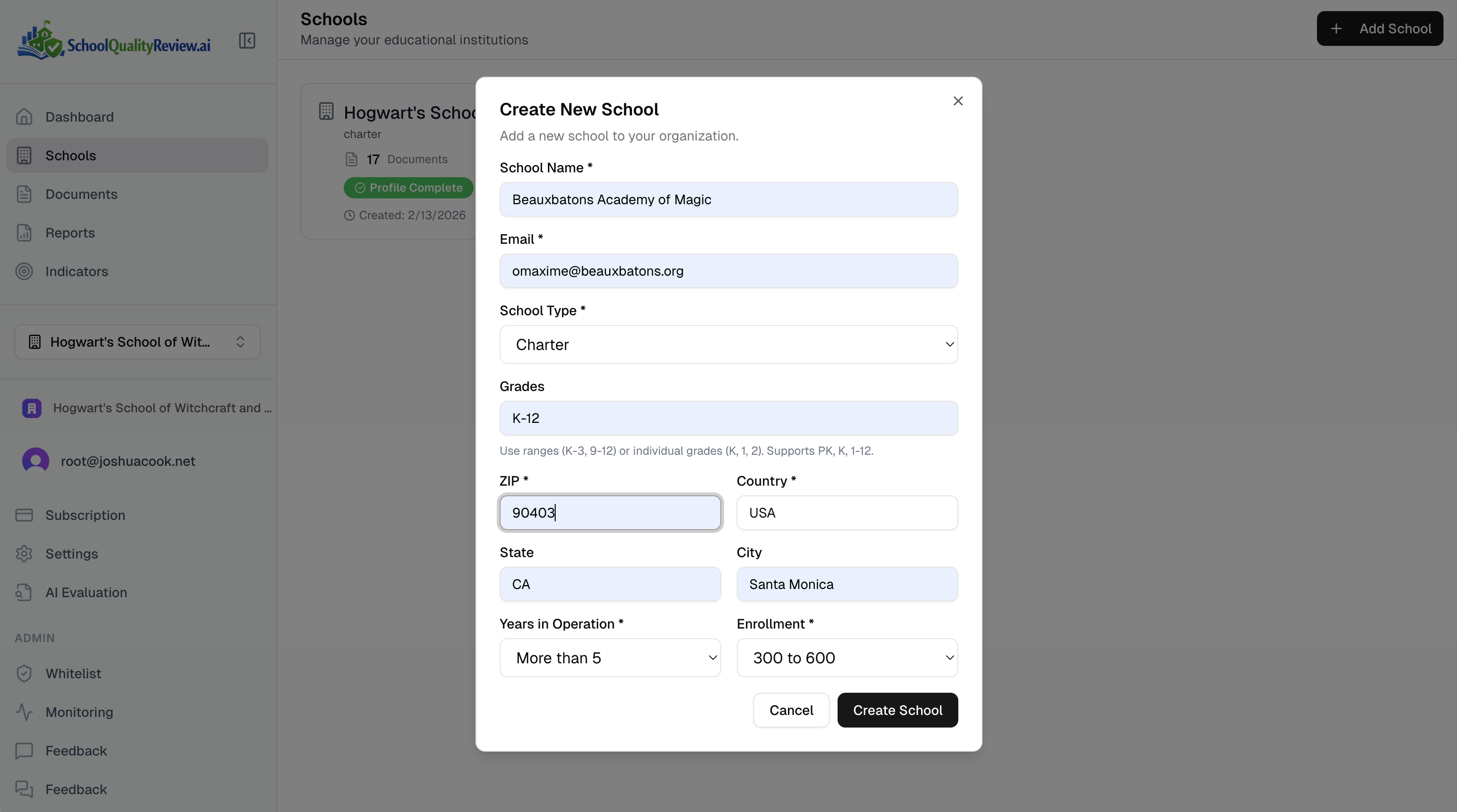
Once created, your school appears on the dashboard alongside any others in your organization.
3. Upload Your Documents
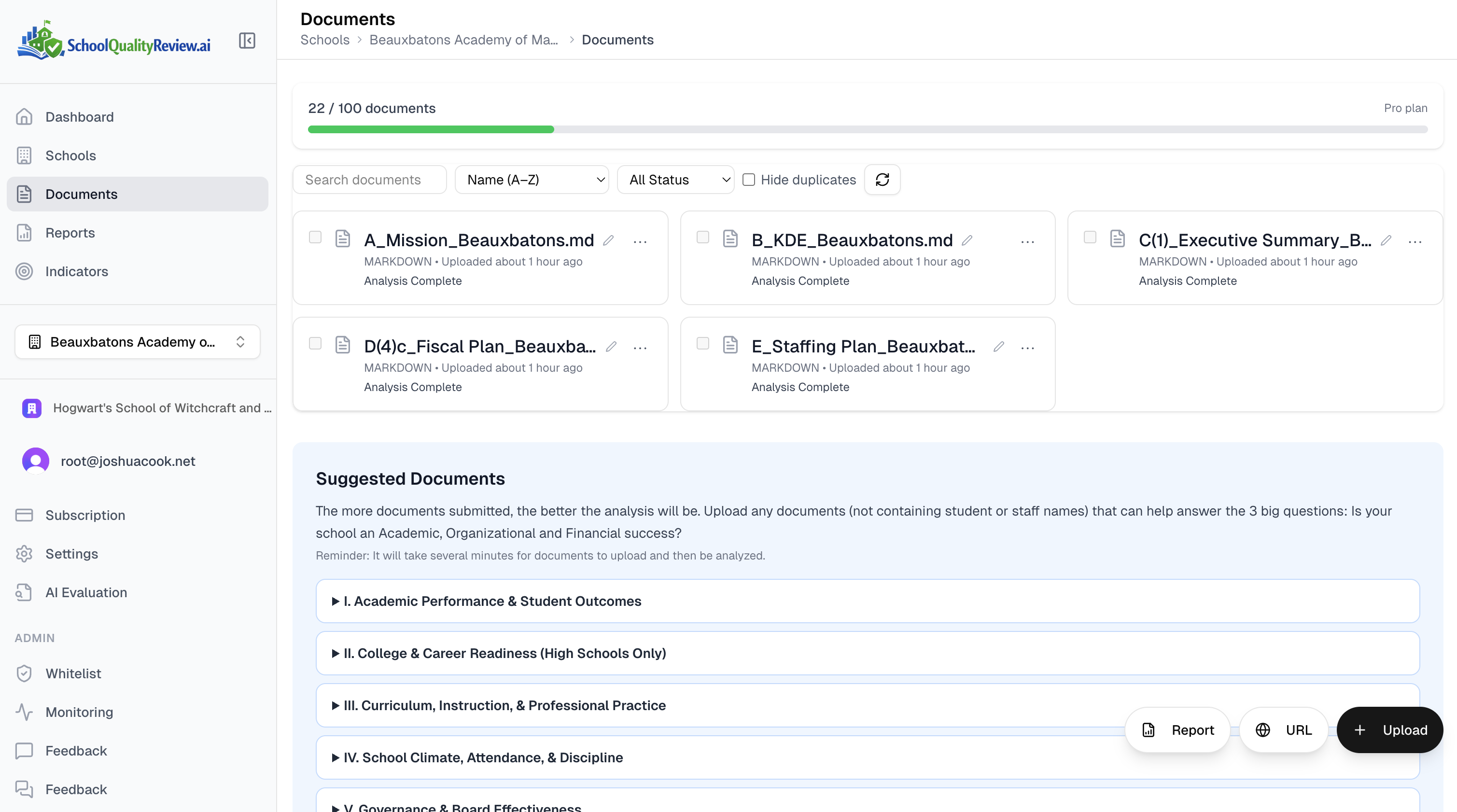
Navigate to Documents for your school. You'll see suggested document categories organized by quality standards — this helps you know what to upload, but any relevant document works.
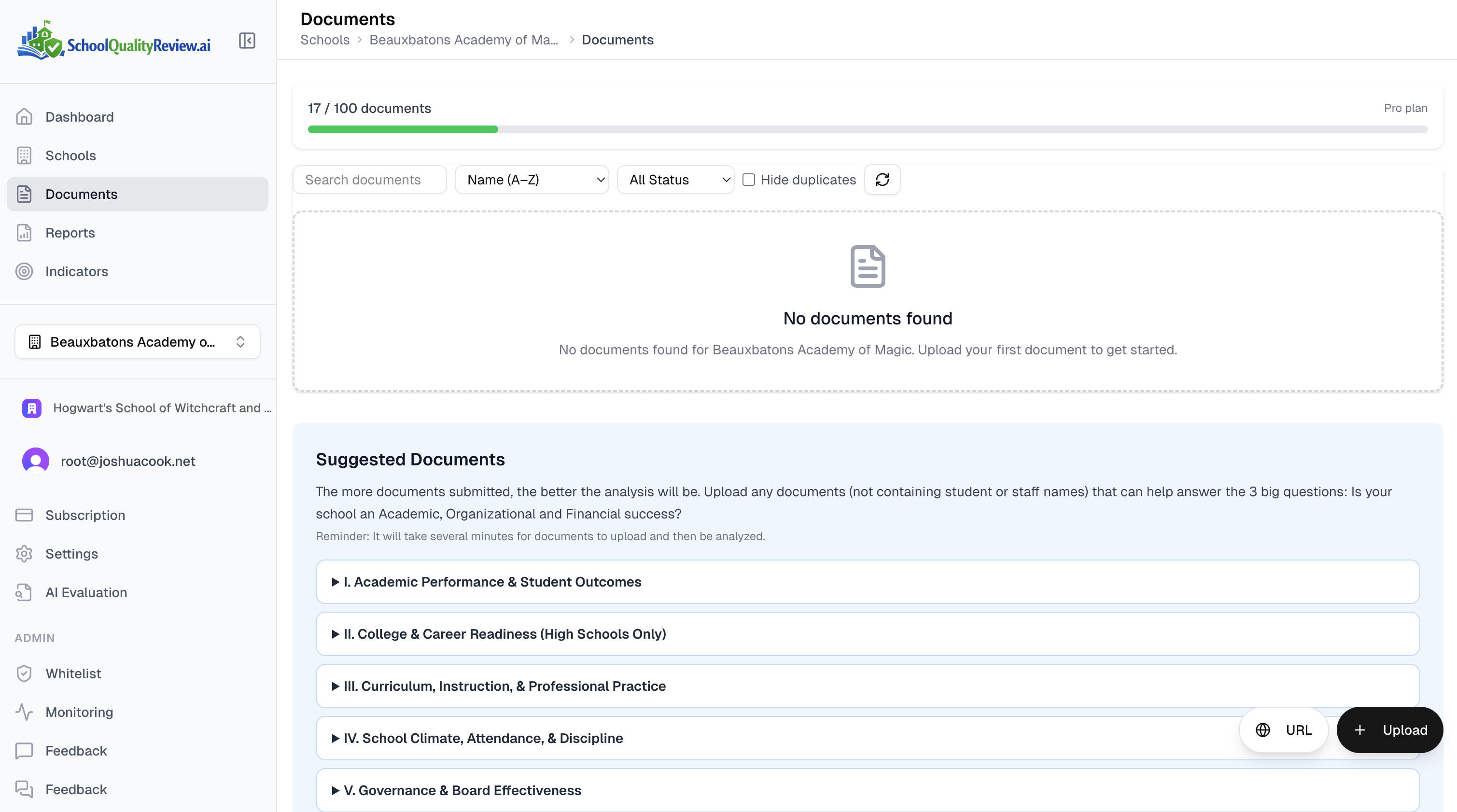
Drag and drop your files, or click to browse. The platform accepts PDF, Word, PowerPoint, Excel, Markdown, and plain text files. Upload whatever your school already has: board minutes, test scores, handbooks, budgets, self-evaluations, strategic plans.
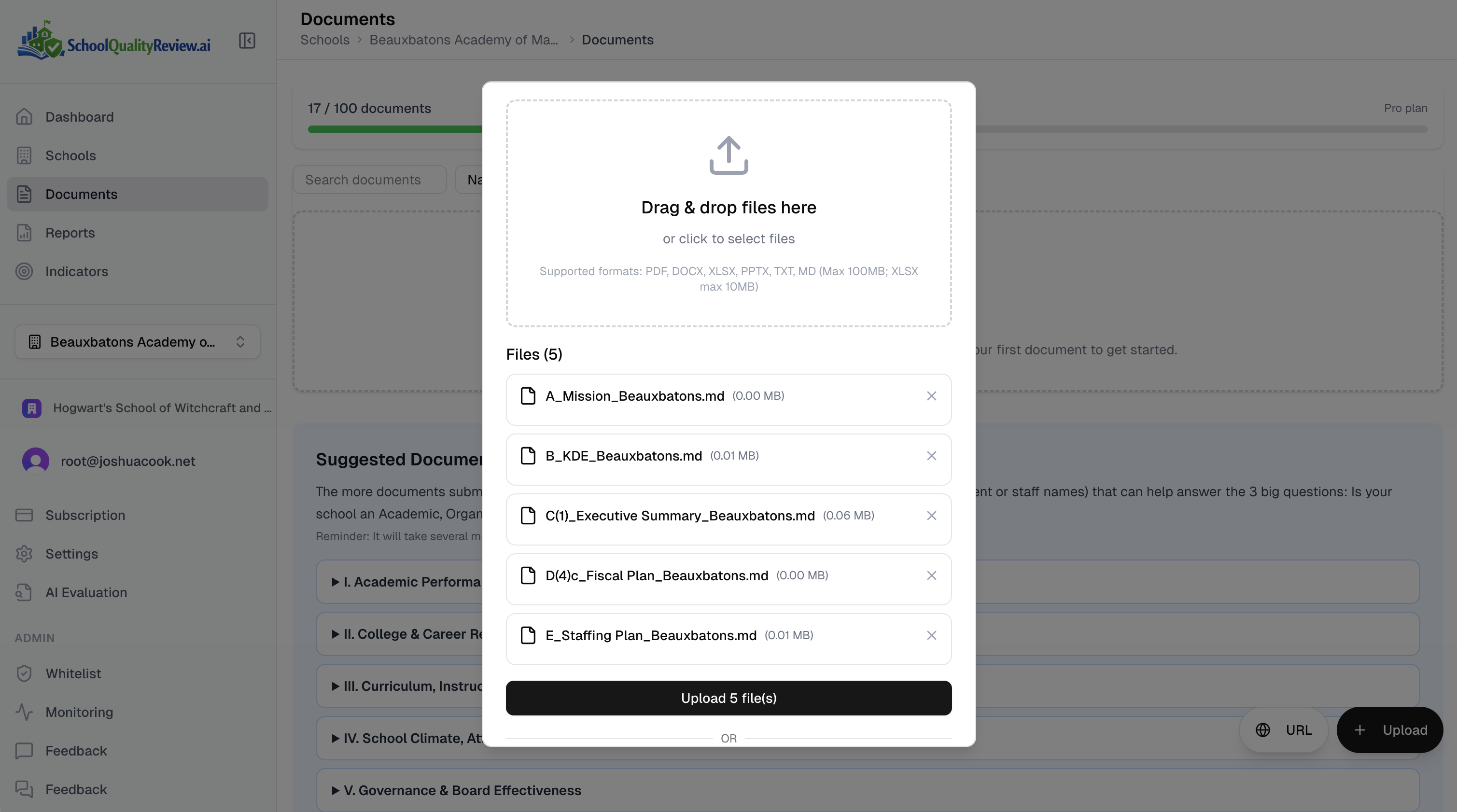
The more documents you provide, the more complete the analysis. In my experience, schools that upload 5+ documents across different categories get significantly richer reviews than those who upload just one or two.
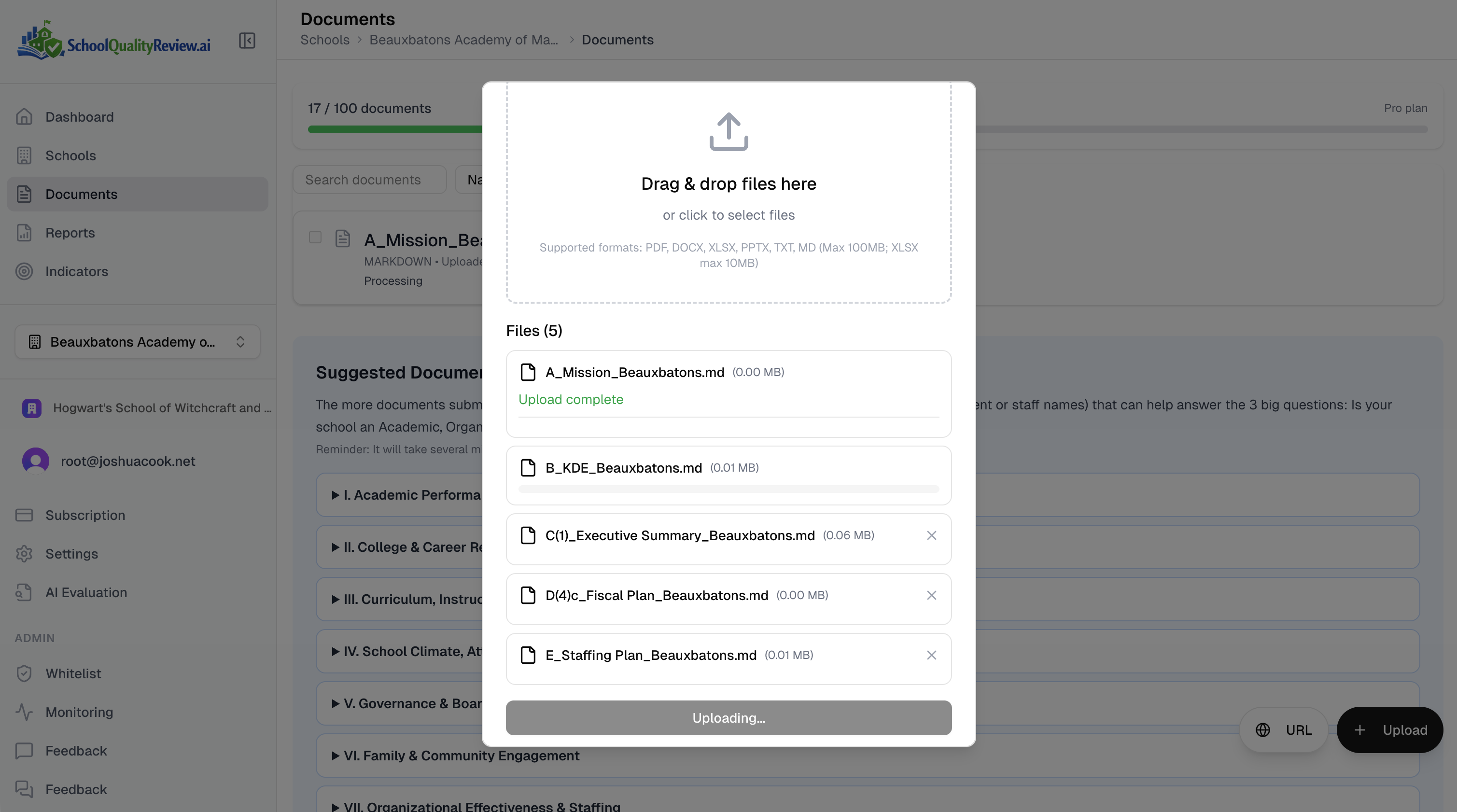
4. Automatic Processing
Once uploaded, the platform processes documents automatically in two stages: first extracting the text and understanding document structure, then assessing each page against relevant quality indicators.
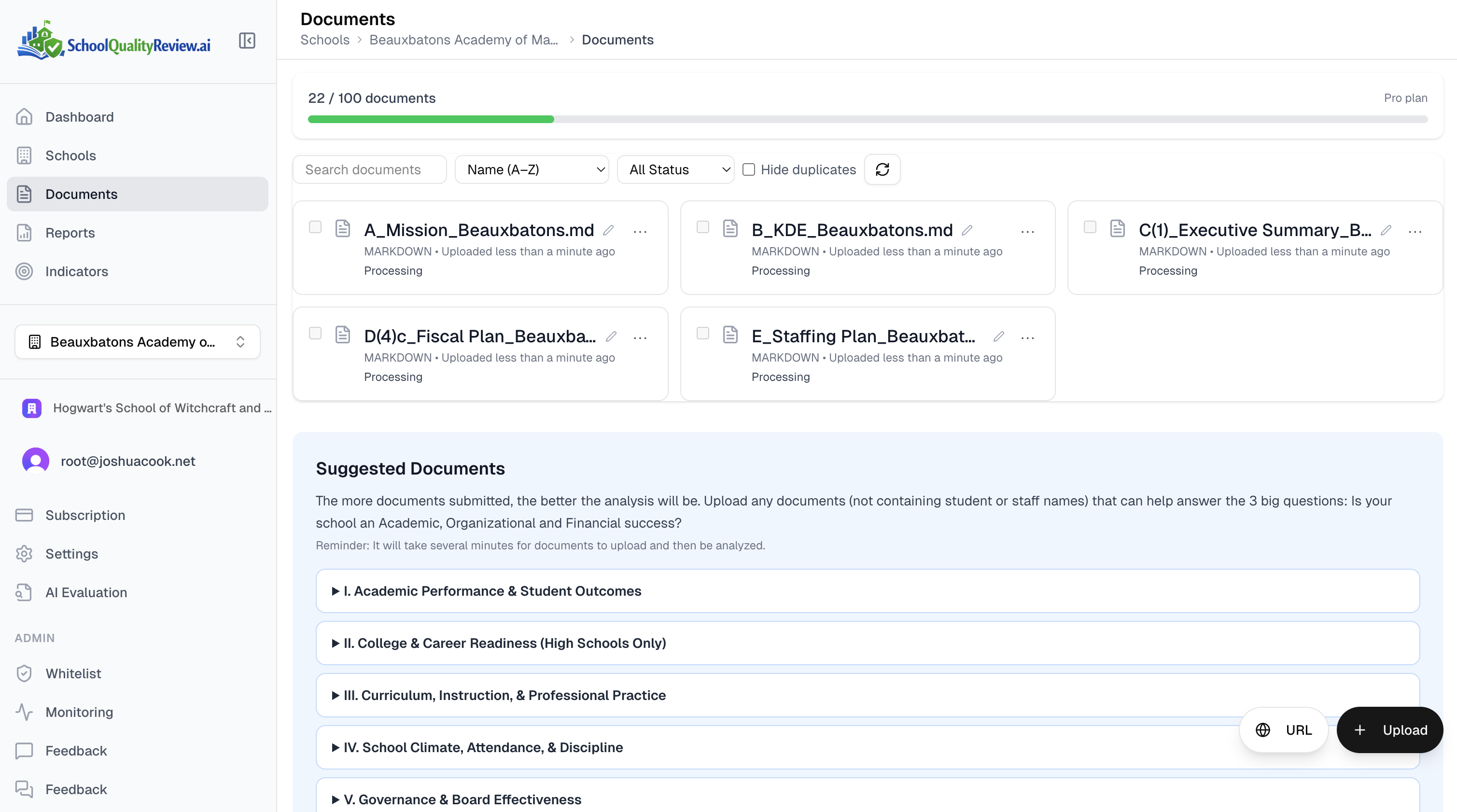
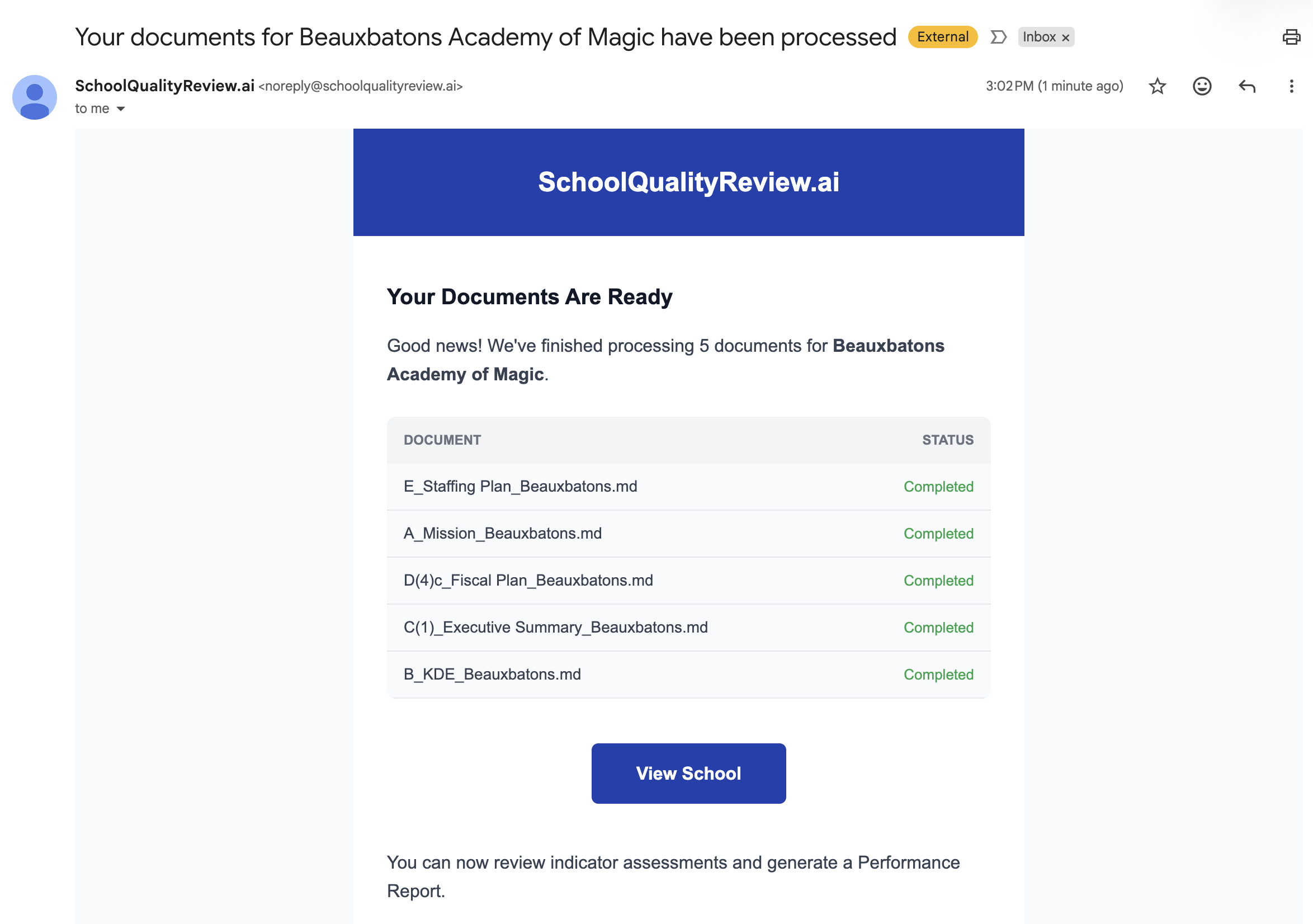
When analysis is complete, all documents show "Analysis Complete" and you'll receive an email notification.
5. Review Your Indicators
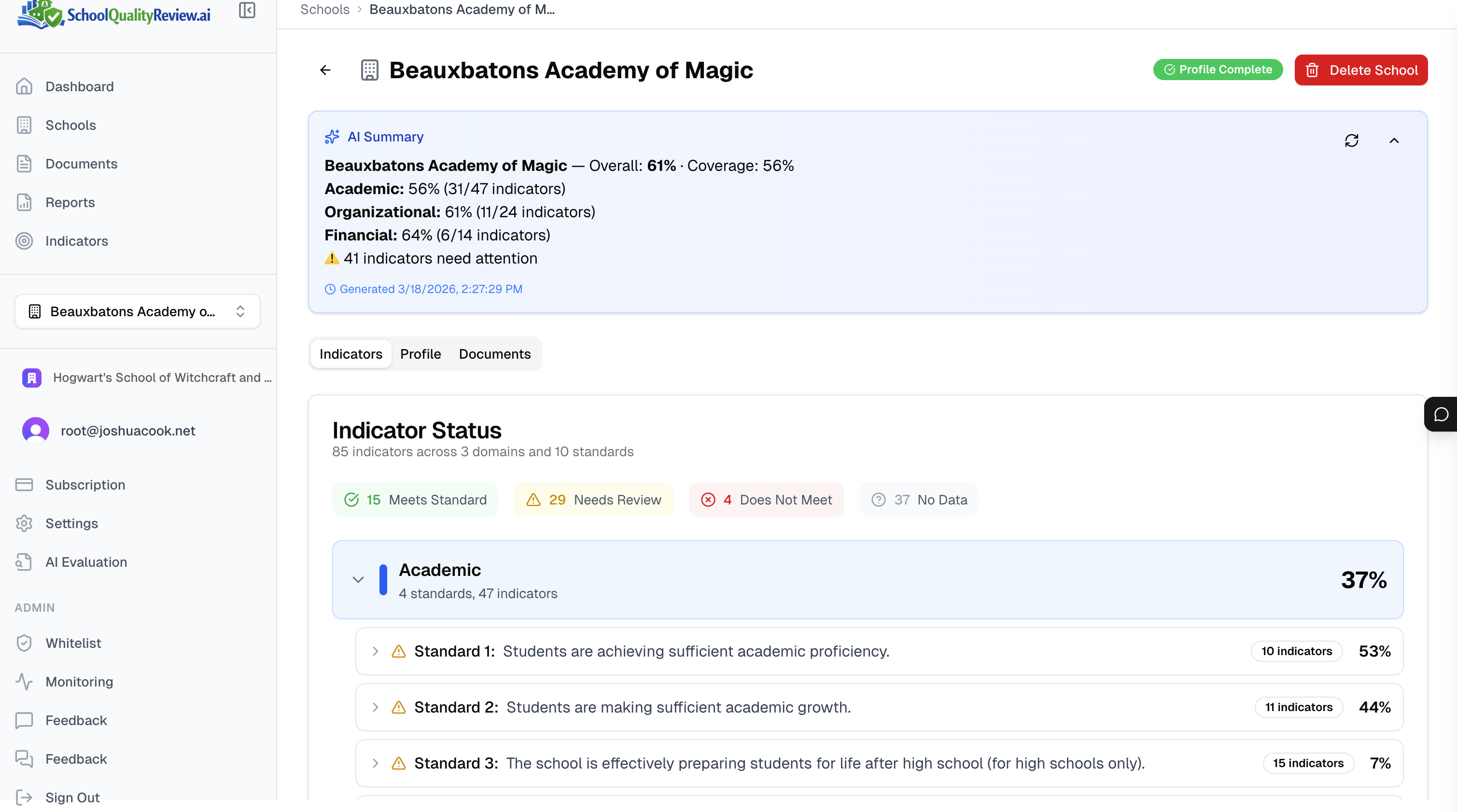
This is where it gets interesting. Navigate to the Indicators tab to see your school's AI-generated summary, overall score, and domain breakdown across all 85 quality indicators.
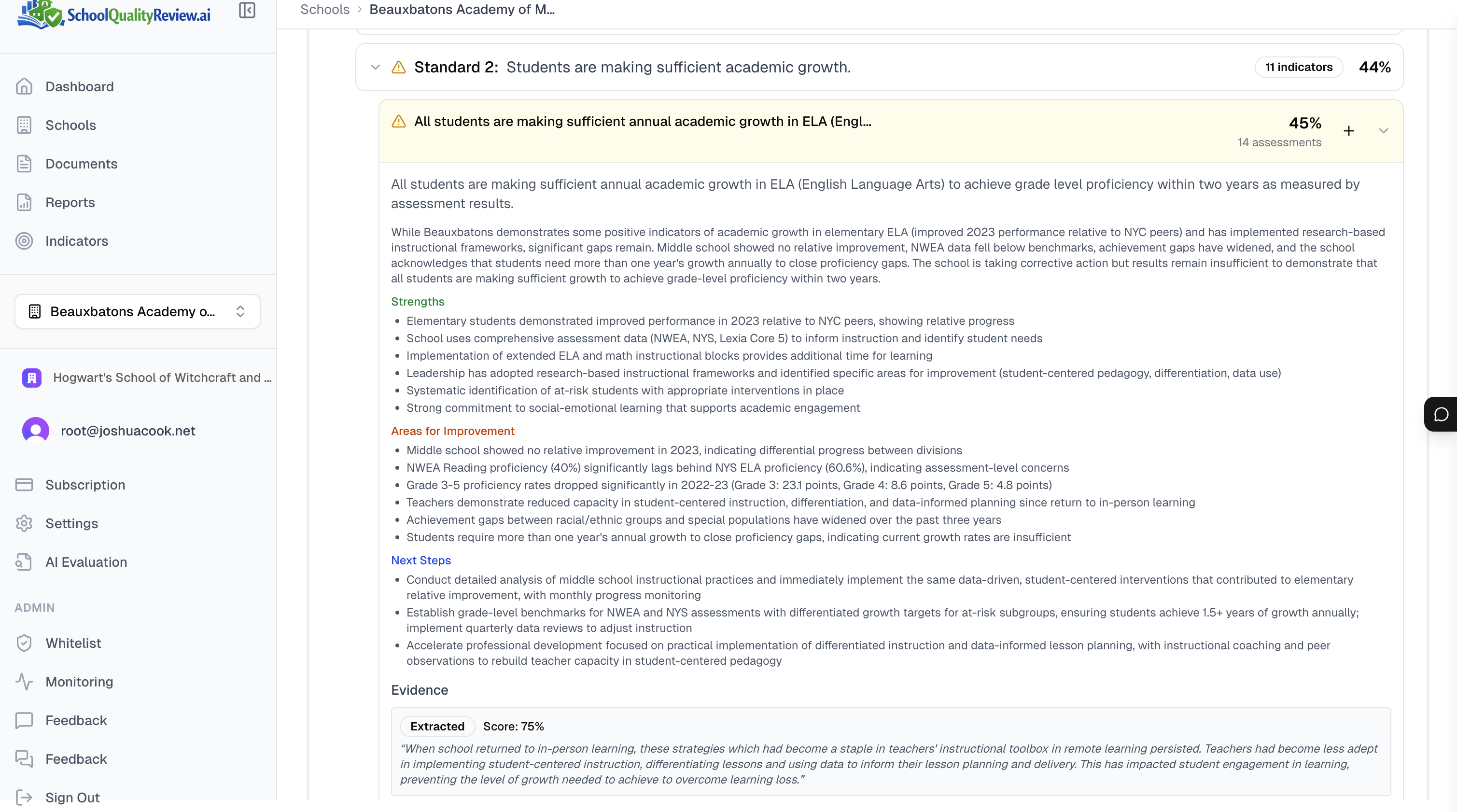
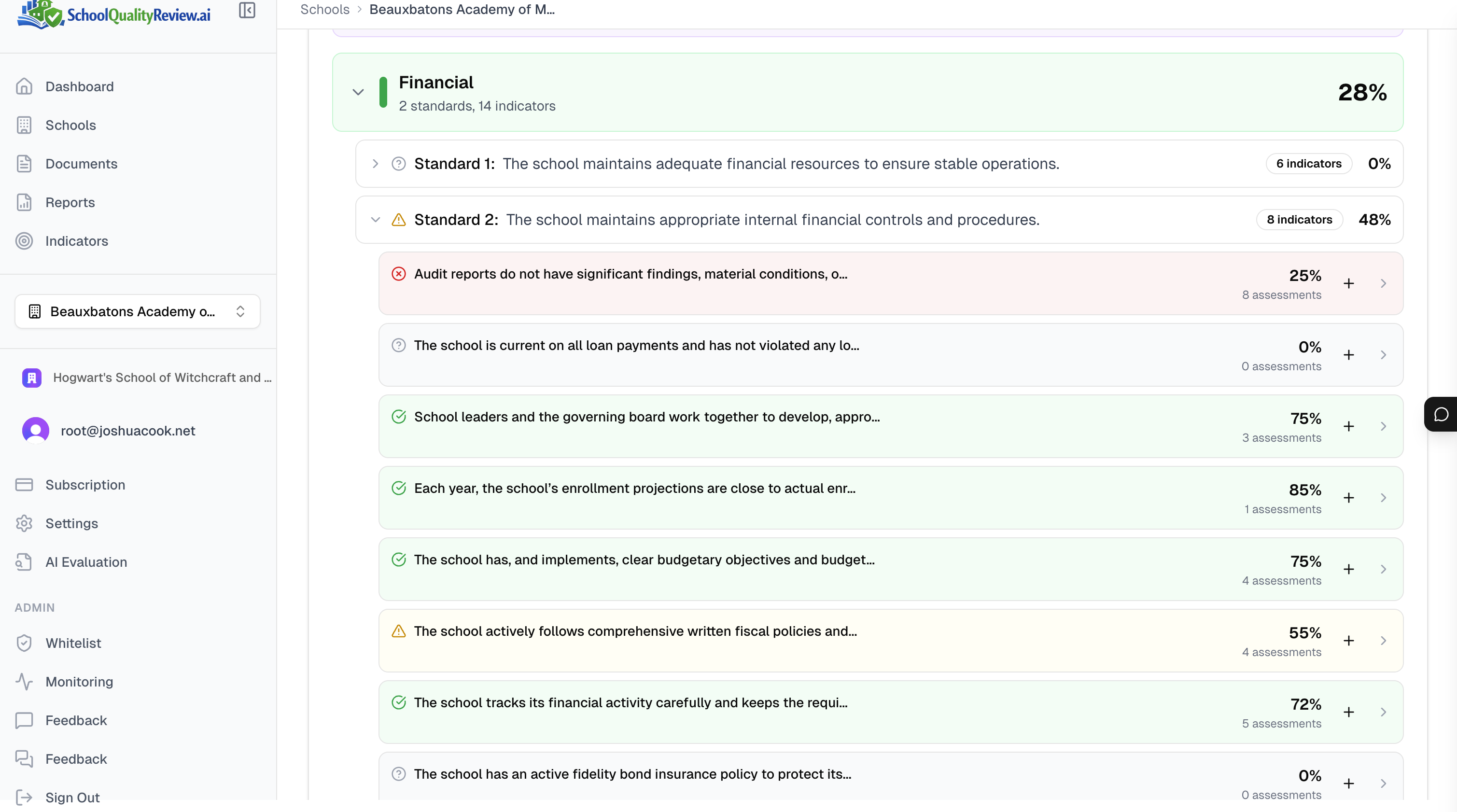
Click into any indicator to see the full analysis: score, evidence excerpts pulled directly from your documents, identified strengths, and specific areas for improvement.
Financial indicators track metrics like fiscal controls, budget management, and compliance — particularly valuable for charter renewal preparation.
6. Generate Your Report
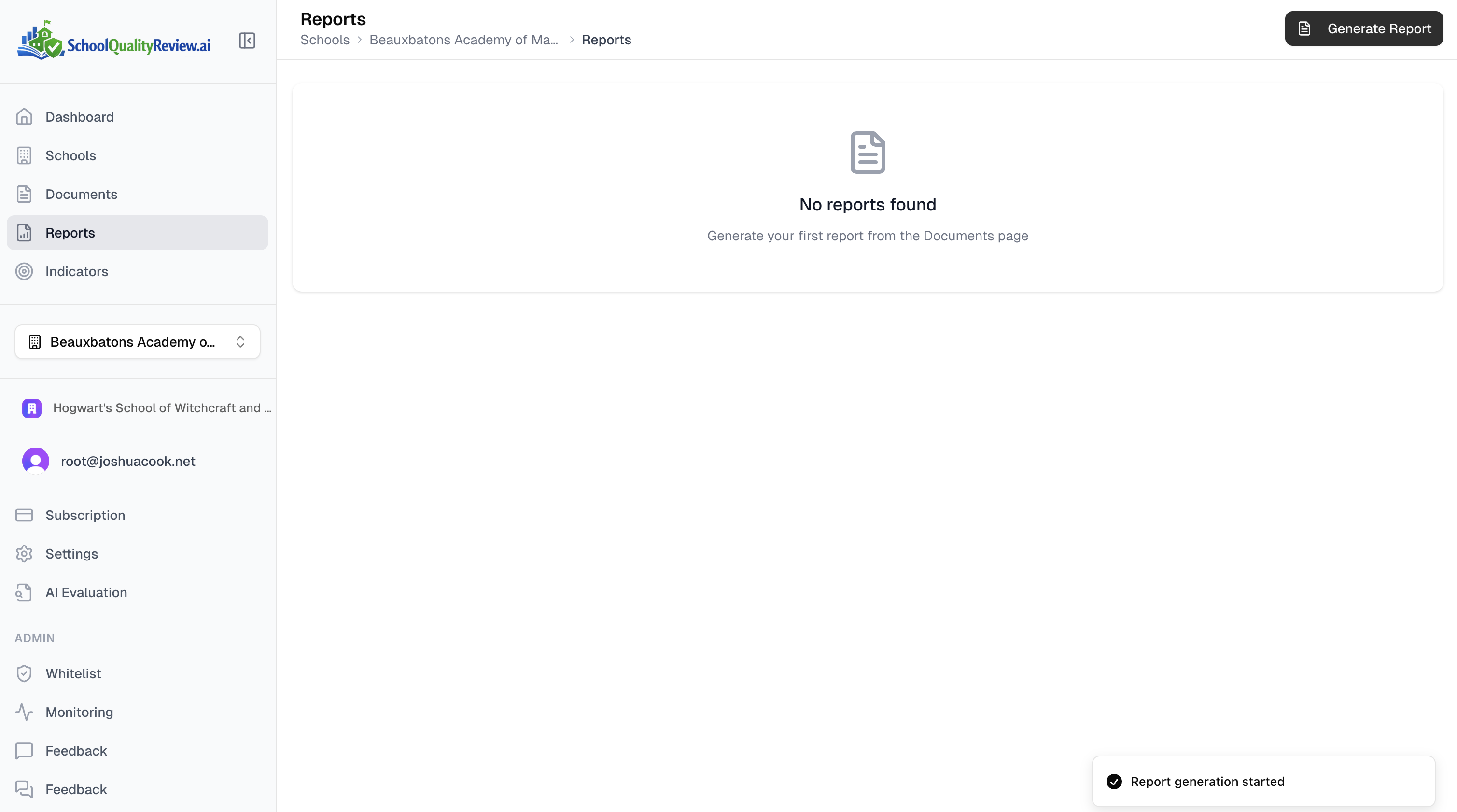
When you're ready, click Generate Report. Report generation typically takes just a few minutes.
Your finished report includes:
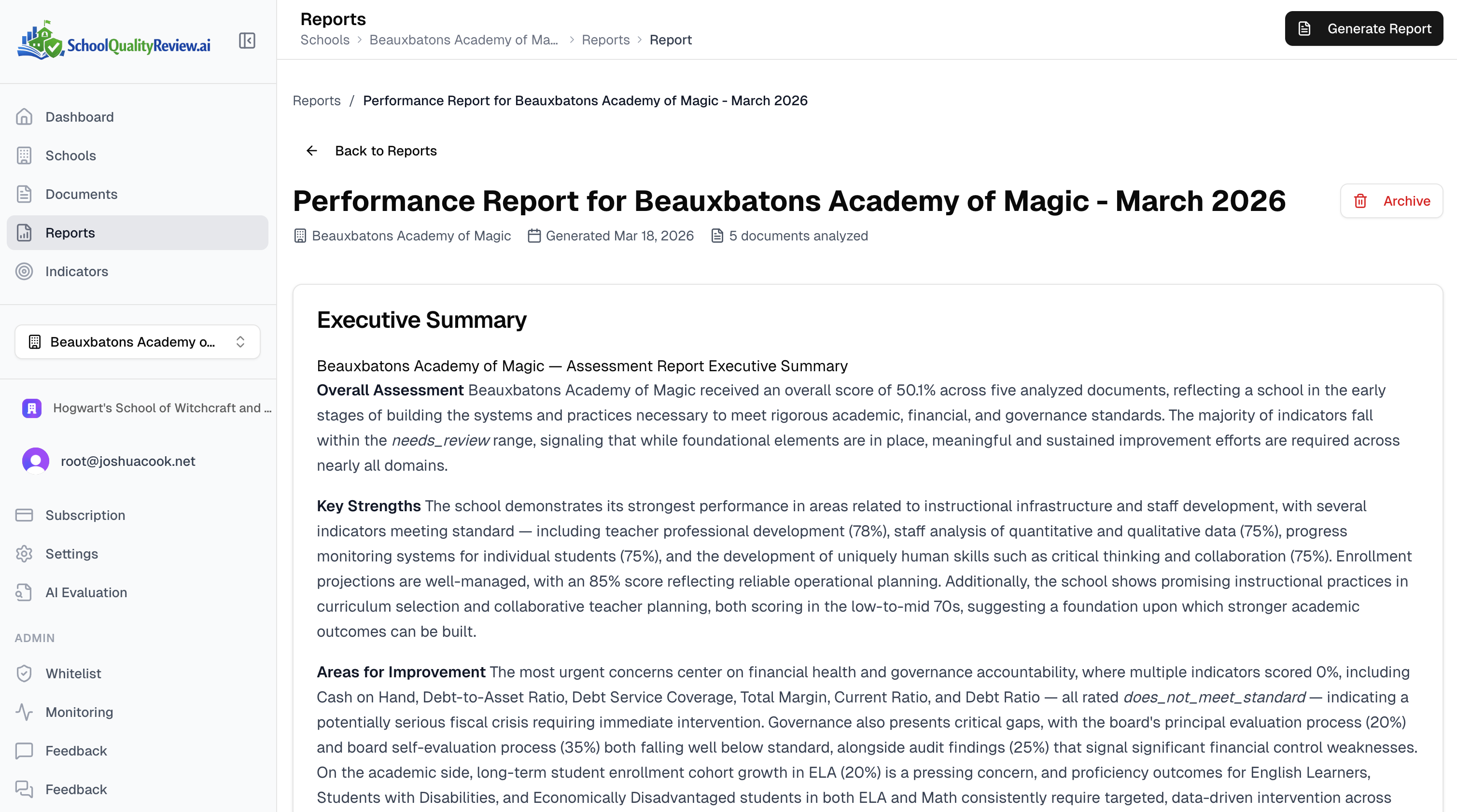
Executive Summary — overall assessment, key strengths, and priority recommendations.
Performance Overview — scores broken down by domain and standard, with color-coded indicators.
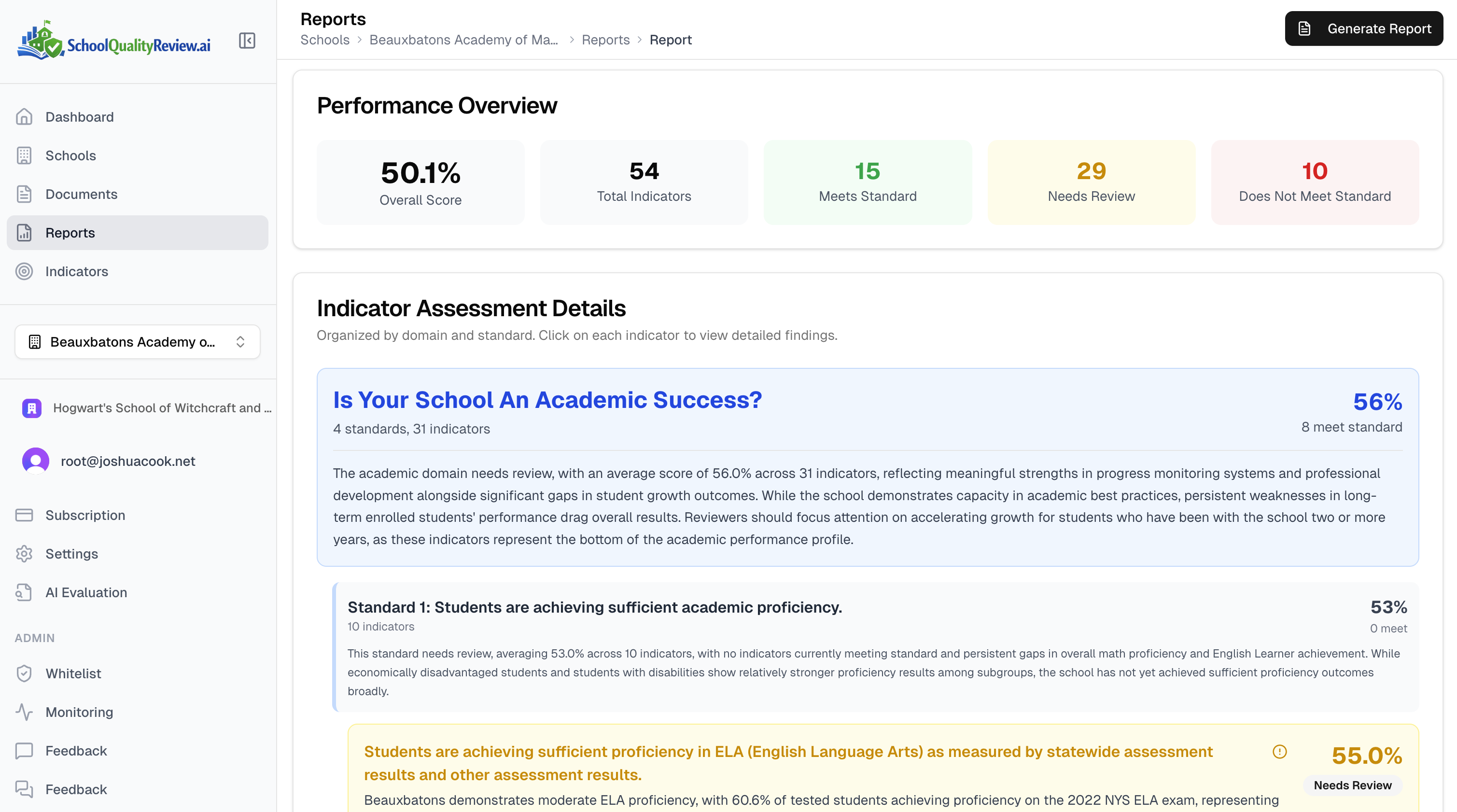
Indicator Details — each indicator with specific strengths, areas for improvement, and next steps, all grounded in evidence from your documents.
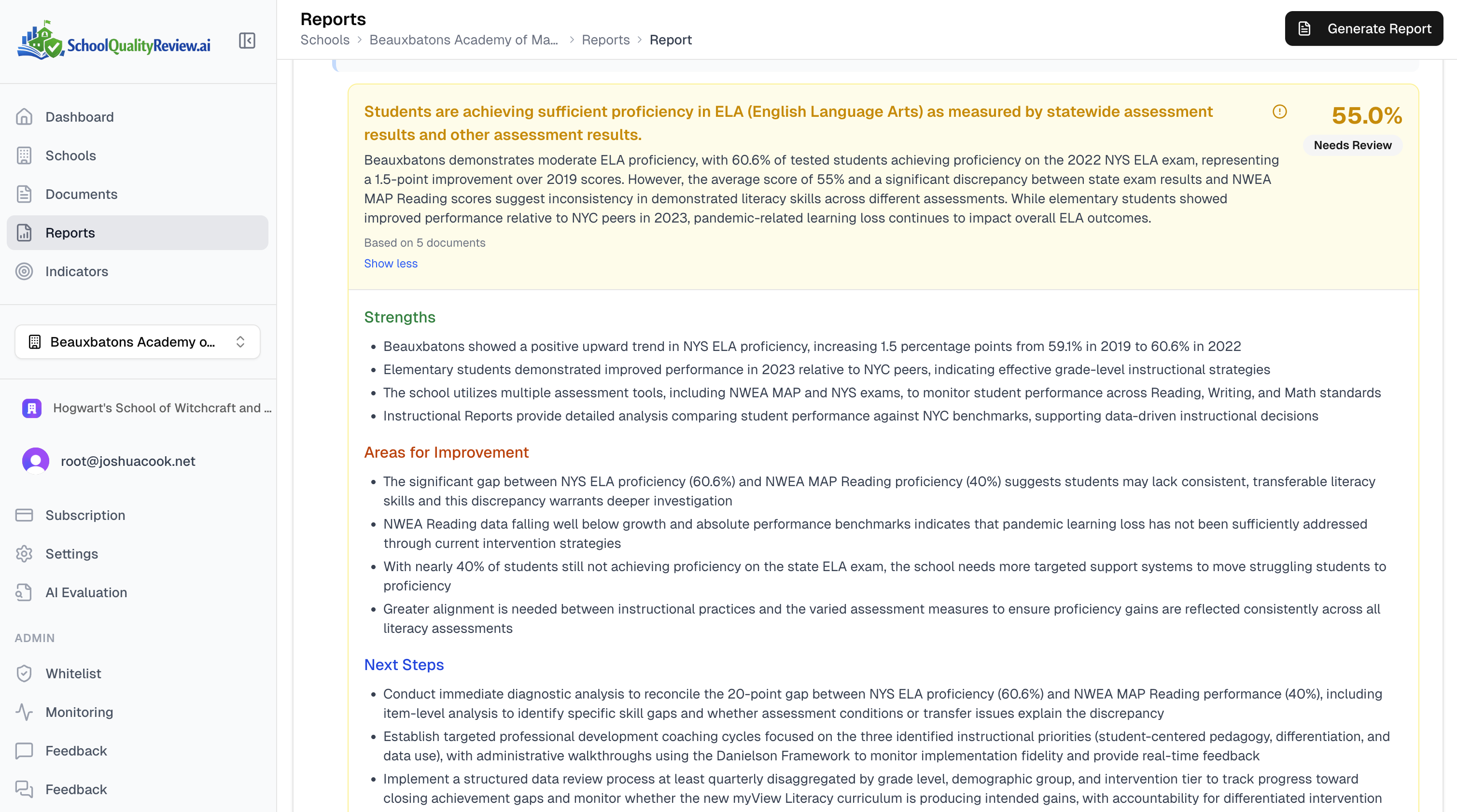
These reports are ready for board meetings, authorizer visits, or internal planning — no additional formatting needed.
7. Keep Improving
Your school overview page shows your current standing at a glance. Upload additional documents at any time to strengthen your scores — the platform re-analyzes and updates your indicators automatically.
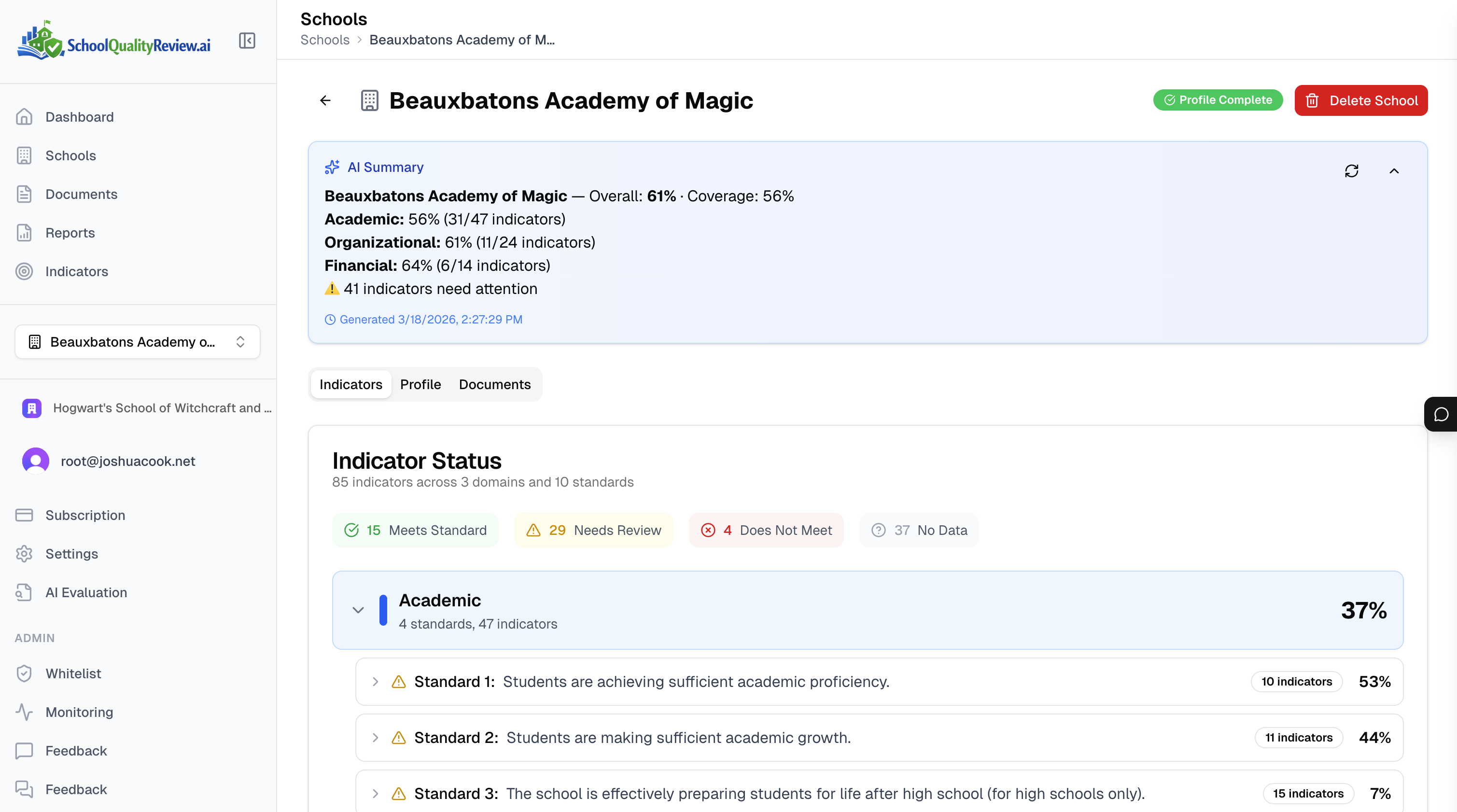
The schools that get the most value from the platform treat it as a living tool, not a one-time exercise. Upload new board minutes after each meeting, add updated test scores as they come in, and watch your indicator coverage grow over time.
Ready to get started? Sign up for free and create your first school today. You can also download the PDF version of this guide.
Ready to see it in action?
Upload your school documents and get a comprehensive quality report.
Try Free Tier